
Rules
All editionsRules are how a form reacts. A rule checks one or more conditions — a field’s value, the user’s group, the form being shown — and runs one set of actions when they match (If yes) and, optionally, another when they don’t (If no). Show a field, make it required, set a value, send an email: no code needed.
Rules are built on the Rules tab of the form configuration. New, Edit and Display each have their own rules — see New, Edit and Display forms for sharing them.
Rules are available in every edition. Some actions and one condition need Professional or Enterprise; they are marked in the tables below and shown with a lock in the rule editor on Essentials.
1. What a rule is made of
| Part | What it does |
|---|---|
| Rule name | A short description of what the rule does. Test results, the rule debug output and the Run based on the result of another rule picker all show it, so a name that says what the rule is for pays off. |
| Conditions for triggering this rule | One or more condition rows, combined with And / Or. Add group nests rows in a group of their own, for logic such as A and (B or C). |
| Trigger this rule on | Form load only, On change only, or Form load and on change — whether the rule is evaluated when the form opens, when a field it depends on changes, or both. |
| If yes / If no | The actions to run when the conditions match, and when they don’t. Leave If no empty when there is nothing to undo. |
| Rule ID | Shown on each rule. Custom JS uses it to read the rule’s result in dffs_ruleState or to run it with dffs_triggerRule — see section 6. |
| Note to self | Free text for the next person who edits the rule. It never appears on the form. |
Pair every Yes with its No. A rule that shows a field when Type is “Order” should hide it again in If no. Otherwise changing Type back leaves the field showing.

2. Conditions
The condition picker lists the list’s fields first (Current item field value), then Other triggers:
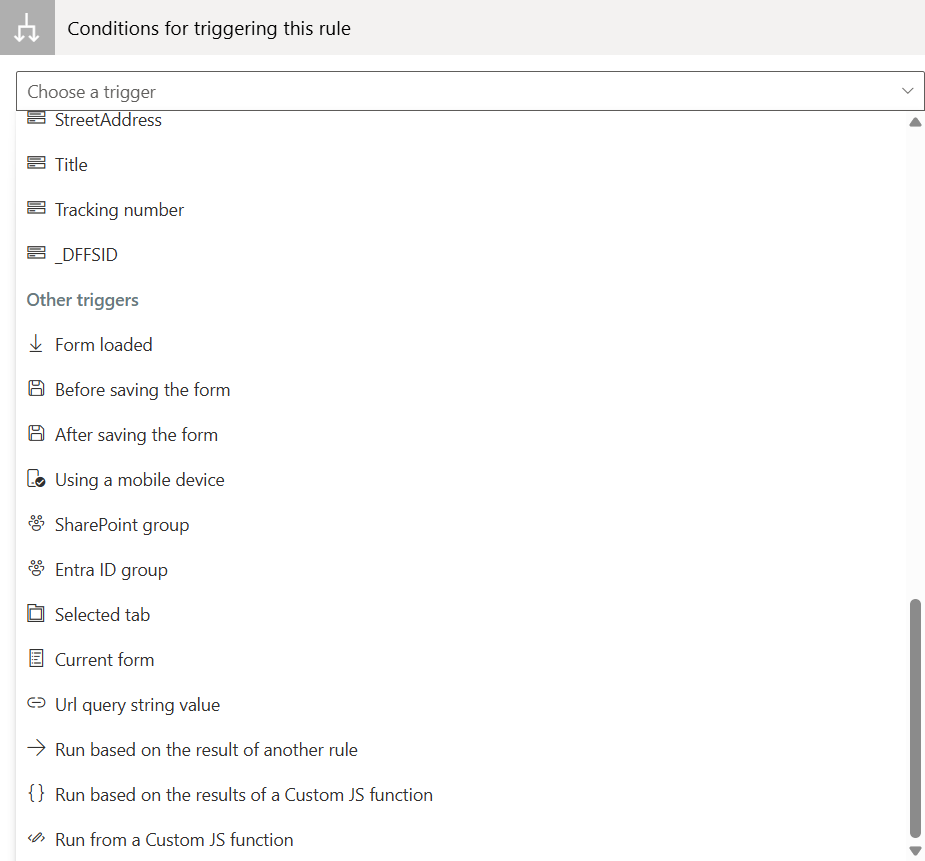
| Condition | Matches when |
|---|---|
| A field | The field’s value compares as chosen — see operators. Person and lookup fields can be compared on a property, such as a person’s email. |
| Form loaded | The form has opened. Use it for actions that should always run, such as prefilling a field. |
| Before saving the form / After saving the form | The user saves. Not offered on the display form. |
| Using a mobile device | The form is open on a mobile browser. |
| SharePoint group | User is a member of group or User is not a member of group. Also match Entra ID groups that are members of this SharePoint group includes people who are in the SharePoint group through an Entra ID group. |
| Entra ID group Professional & Enterprise | User is a member of Entra ID group (or is not), including through nested groups. If membership cannot be read, the rule is skipped and none of its actions run — it is never treated as “not a member”. Permissions: Architecture & Security. |
| Selected tab | A given tab is selected. Offered when the form has a tab set; the tab is identified by its ID, shown when you edit the tab set. |
| Current form | The form shown is the New item form, Edit item form or View item form. It follows the form actually on screen, so it is right after switching from Display to Edit on the DFFS form page and inside vLookup child forms. Useful when the same rules are shared between forms. |
| Url query string value | Get query string value matches when the parameter is present in the address; Compare query string value matches name=value exactly. |
| Run based on the result of another rule | Another rule evaluated to TRUE or FALSE — pick which under Run if the rule is evaluated to…; left untouched it means FALSE. If the other rule is still being evaluated (for example an async Custom JS condition), this rule waits for it, up to 10 seconds. |
| Run based on the results of a Custom JS function | The named function returns true. It is called with the rule’s ID, and it may be async. Custom JS needs Professional or Enterprise. |
| Run from a Custom JS function | Never by itself: the rule runs only when Custom JS calls dffs_triggerRule(ruleIdOrName, true|false), and the boolean picks If yes or If no. |
Operators
A field condition offers the operators its column type supports — a number has no contains, a choice has no greater than:
| Operator | Notes |
|---|---|
| is equal to / is not equal to | On a field that holds several values — multi-choice, or a lookup or person field allowing multiple values — is equal to means one of the values is equal, and is not equal to means none is. This is the right way to ask “is the current user one of the approvers?”: Approvers: Email is equal to [[currentuser:email]]. |
| contains / does not contain, starts with, ends with (and their negatives) | Text comparisons. On a multi-value field they test the values joined into one text, so contains ann@contoso.com also matches joann@contoso.com — prefer is equal to there. |
| is greater than, is less than (and or equal to) | Number and Currency fields are compared as numbers, whatever the site’s thousand separator. |
| is changed | The value changed from what it was before the last change. |
| is changed from initial value | The value differs from what the item had when the form opened. |
| is empty / is not empty | No value, or any value. |
Attachments has its own operators: is empty, is not empty, is changed, is changed from initial value, and number of attachments is equal to / greater than / less than…, compared with a number. Rules on Attachments run again whenever a file is added or removed.
Several attachment controls on one form
A form can show the attachments in several places, each with its own Attachment suffix / filter in the field properties — an Invoice control for files ending in _invoice and a Receipts control for _receipt. Each control shows only its own files. To check one of them, pick Attachments: files ending with “_invoice” as the condition: the picker lists one such entry for each suffix used on the form, and every Attachments operator then looks at that control’s files only. The plain Attachments condition still counts every file.
- Require a file in one control with Require at least one file with this suffix, under the suffix in the control’s field properties. The form cannot be saved until a file is added there. It is not checked while the control is hidden or read-only, or on a tab a rule has hidden.
- Hide one control with the Hide elements action and the control’s ID,
Attachments_<id>— the Field placeholder ID at the bottom of its field properties. Hidden fields hides every attachment control, because they are all the same field. - The suffix is matched at the end of the file name, before the extension; the extension’s case does not matter.
Setting up the sections, and a worked example: Attachments guide.
The condition value can use dynamic content, such as [[currentuser:email]] or another field’s value.
3. Actions
The action menu groups the actions by what they do. The Edition column shows which actions need Professional or Enterprise (Pro).
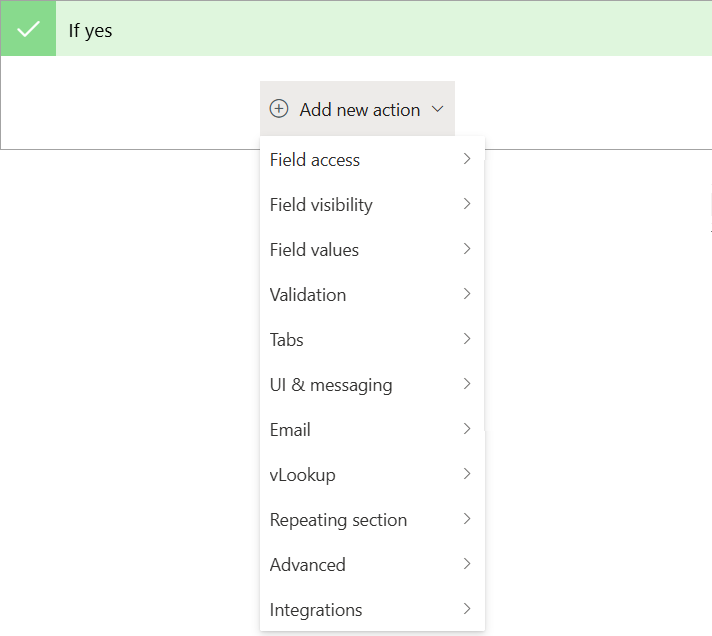
| Group | Action | Edition | What it does |
|---|---|---|---|
| Field access | Required fields | All | Makes the fields required. |
| Optional fields | All | Makes them optional again. A column that is required in SharePoint stays required. | |
| Editable fields | All | Makes read-only fields editable again. | |
| Read-only fields | All | Shows the value, but not as an input. | |
| Field visibility | Visible fields | All | Shows hidden fields. |
| Hidden fields | All | Hides the fields, label and all. | |
| Field values | Set field value | All | Writes a value, with dynamic content; start it with = to write a formula. Each row has Only if the field is empty (ticked on a new row, so a value the user typed is kept) and Clear the previous value before setting new value. |
| Compute field value | Pro | Sum, subtract, multiply, divide, concatenate, date offset, date difference or an Excel-style formula. Guide → | |
| Restrict date range | Pro | Sets the earliest and latest date a date field accepts. | |
| Validation | Validation message | Pro | Shows a message under a field, until another rule clears it or after a set number of seconds. Give it an ID to clear it later. |
| Clear validation message | Pro | Removes a validation message by its ID. | |
| Tabs | Show/hide tabs | All | Shows or hides tabs. Tabs guide → |
| Select tab | All | Switches to a tab. | |
| UI & messaging | Show elements / Hide elements | All | Shows or hides any element by ID, or by class with a leading dot — an HTML section, a row, a column. Separate several with a comma. |
| Show/hide buttons | Pro | Shows or hides the form’s own buttons, such as Save and Cancel. | |
| Message box | All | Shows a message. {FieldInternalName} pulls in a field’s value. It can be dismissed by clicking anywhere, or only by its button. | |
| Send email | Pro | Sends an email after the form is saved (on the display form, right away), now or on a date you set, automatically or after the user previews and edits it. Send email guide → | |
| Cancel email | Pro | Stops an email from being sent, whether it is waiting for the save or already scheduled. Guide → | |
| vLookup | vLookup read-only | Pro | Disables or hides its buttons and icons. vLookup guide → |
| vLookup required | Pro | Blocks saving until it holds at least one item. | |
| Repeating section | Repeating section read-only | Pro | Disables or hides Add row and the edit and delete icons. Guide → |
| Repeating section required | Pro | Blocks saving until the section has a row. New and Edit forms only. | |
| Advanced | Run custom function | Pro | Calls Custom JS functions by name (separate several with a semicolon). Each is called with any arguments you add, then the item’s field values, the match result and the rule. |
| Write to other list | Pro | Updates, or creates, an item in another list, matched on a field you choose. | |
| Integrations | Trigger Power Automate Flow | Pro | Calls a flow. |
| Generic webhook | Pro | Calls a webhook URL. | |
| Cancel integration trigger | Pro | Prevents a flow or webhook call from being made. |
Saving waits for rules that are still working. Set field value waits a moment before it writes, so the field that triggered it has settled. If the user clicks Save straight after changing a field, the save waits for the rules that change triggered — up to 10 seconds — so their values are saved too.
4. Field groups
When several rules act on the same set of fields, name the set once. A field group can be picked in Required fields, Optional fields, Visible fields, Hidden fields, Editable fields and Read-only fields instead of each field. Change the group, and every rule using it follows.
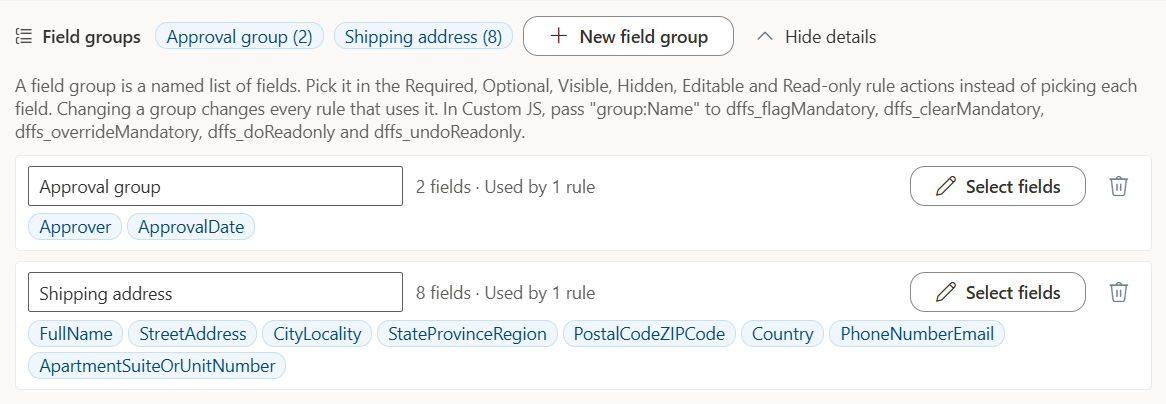
- Create one with New field group in the Field groups bar at the top of the Rules tab, then Select fields. Or pick the fields in an action as usual and choose Create field group from these fields from the action’s menu: the fields become a group, and the action uses it.
- Use one from the field picker of the six actions, where Field groups are listed above the fields. In the rule it shows as Field group: Contact details, with its fields in the tooltip.
- Manage them by clicking a group’s chip, or Manage field groups: rename the group, change its fields and their order, and see how many rules use it. A field the list no longer has is shown in red.
- A group in use cannot be deleted. The dialog lists the rules that use it; remove it from them first.
- Names are unique and contain no comma, because Custom JS finds a group by name:
dffs_flagMandatory(["group:Contact details"]). See the Custom JS reference. - Groups belong to one form, like its rules. A form that uses Shared design uses the source form’s groups. Field groups from a Classic DFFS configuration are kept as groups when it is imported.
5. Keeping many rules manageable
- Groups for rules. New group and Group sort rules into named groups, listed alphabetically. Groups only organise the list; they do not change how rules run.
- Search. Highlight matching elements… highlights what matches the text you type in every rule — a field used in a rule also matches through a field group that holds it. Hide rules that do not match the filter narrows the list.
- Copy this rule duplicates a rule as a starting point.
- Disable this rule switches a rule off without deleting it (DISABLED); Disable all rules does it for every rule while you track down a problem.
- Print all rules gives a readable overview for a review.
- Warnings on a rule. MISSING FIELD means the rule refers to columns the list no longer has; hover over it to see which, and where. Missing fields in actions can be removed from the rule, or from every rule at once with Clean up missing fields. NEVER FIRES is added when a missing column is in a condition: the rule can never run. That condition is left in place on purpose — removing it would make the rule start firing. MISSING ATTACHMENT CONTROL means a condition checks the files of an attachment suffix that no control on the form uses any more: it finds no files, so pick the control again in the condition.
- Tests. Form tests check that rules still do what they should after a change. A rule with tests shows how many, and can run just those.

6. Rules and Custom JS
| You want to | Use |
|---|---|
| Decide a condition in code | Run based on the results of a Custom JS function — return true or false, or a Promise of one. |
| Run a rule from code | Run from a Custom JS function as the condition, and dffs_triggerRule(ruleId, true) (or false for If no). |
| Read a rule’s result | dffs_ruleState[ruleId]; dffs_ruleNameToId maps names to IDs. |
| Do something a rule action can’t | Run custom function. |
Details and examples: Custom JS — Window API reference.
7. When a rule does not do what you expect
- Check the warnings on the rule — DISABLED, MISSING FIELD, NEVER FIRES.
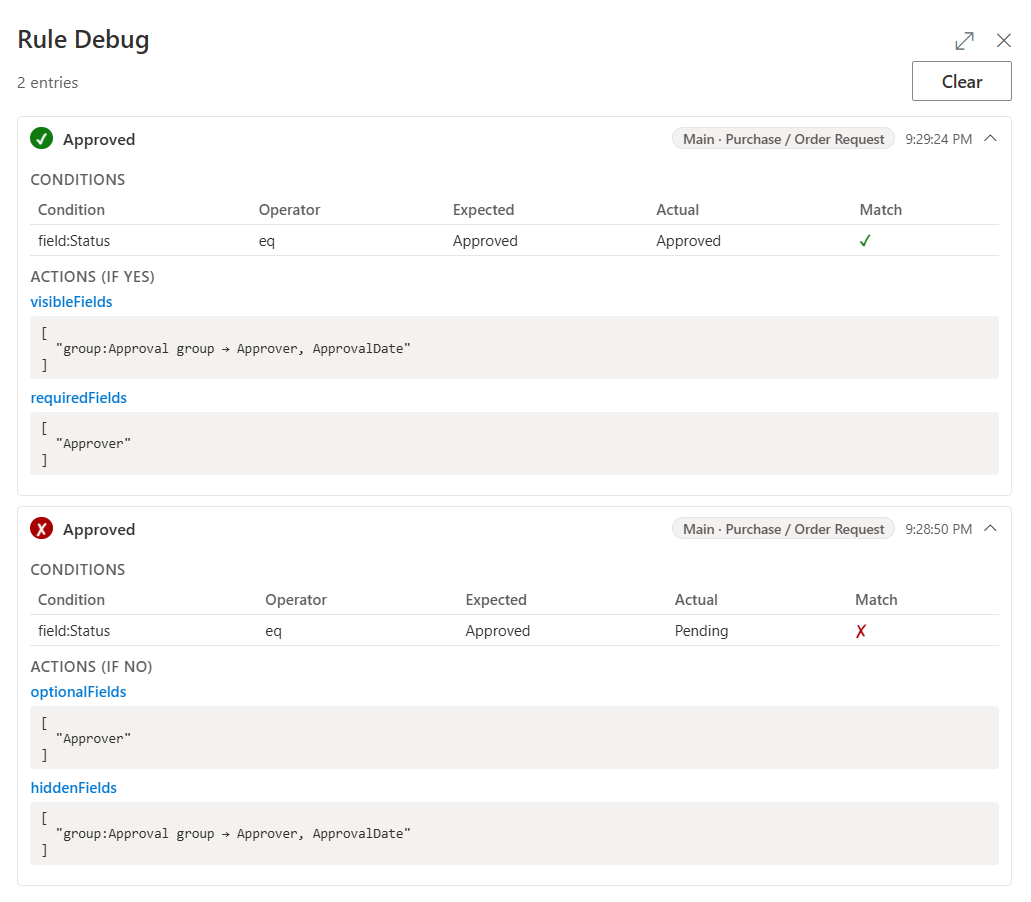
- Turn on Debug this rule (or Debug all rules) and open the form — or use the preview in the configuration. A Rule Debug button with a bug icon appears in a bottom corner, with the number of entries. Click it: each time the rule runs, the panel shows its conditions with the value expected and the value it actually read, whether each matched, and the actions that ran — with field groups expanded into their fields. It keeps the latest 25 entries; Clear empties it. Developers find the same output in the browser console (F12).
- Check Trigger this rule on. A rule set to On change only does nothing when the form opens.
- Check the other rules. Two rules acting on the same field undo each other; the one that runs last wins. A field group makes overlaps easier to see.
- Write a test for the case once it works, so it keeps working. See Form tests.
More checks: Troubleshooting.