
New, Edit and Display Forms
All editionsA SharePoint list has three forms: New for creating an item, Edit for changing it, and Display for viewing it — in the configuration they are called New item form, Edit item form and View item form. In Modern DFFS each has a configuration of its own, so the three can look and behave differently — or be kept the same with very little work. This page explains the three ways to set them up, and how rules and tests tell the forms apart.
1. What each configuration holds
Each form’s configuration holds its own layout, rules and their field groups, tests, Custom JS and Custom CSS, and the settings on its Miscellaneous tab. Open the form you want to configure — New, Edit or Display — and the configurator works on that form’s configuration.
2. Three ways to set them up
| Approach | How | Good for |
|---|---|---|
| Separate designs | Configure each form on its own. | Forms that really differ — a short New form, a full Edit form, a read-only summary on Display. |
| Copy, then adjust | Build one form, copy it to the others, and change what differs. See section 3. | Forms that start the same and drift apart a little. Each copy is independent afterwards. |
| Shared design | Let a form use another form’s design. See section 4. | Forms that must stay the same — typically Edit sharing New. One change applies to both. |
3. Copying a configuration to another form
- Save the form you built, for example New.
- Open the configuration of the form you want to copy to, for example Edit.
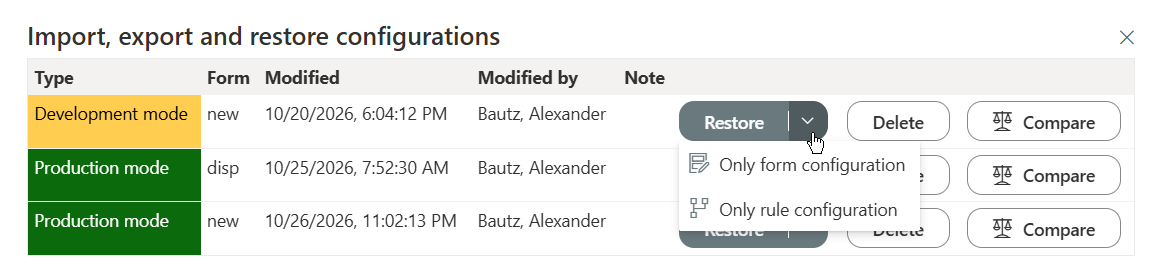
- Choose Import / Export. Under Import, export and restore configurations, the stored configurations for this list are listed with the form each belongs to (new, edit or disp). Type tells the Production mode configuration — what users see — from a Development mode working copy. Compare compares a stored configuration with the current one.
- On the New form’s Production mode row, click Restore to copy everything. The arrow beside it copies part of it: Only form configuration (the layout) or Only rule configuration (the rules, with the field groups they use).
- The configuration is loaded but not saved — check it, then Save.
From then on the two configurations are separate: a change to one does not reach the other. Copy again, or use Shared design, when they need to stay in step.
Copying the tests as well? Tests run on the form they were written on. After copying, tick the other forms under Runs on in each test, so the same test checks every copy — see Form tests.
4. Shared design
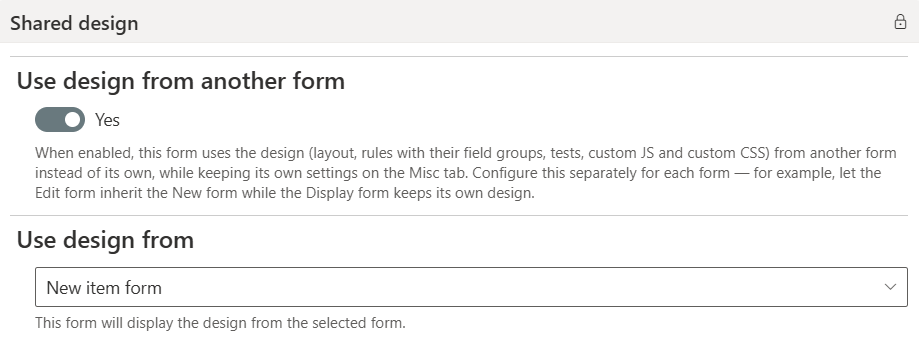
On the Miscellaneous tab, under Shared design, turn on Use design from another form and pick the form under Use design from — for example New item form. The form then uses that form’s design instead of its own:
| Taken from the other form | Kept by this form |
|---|---|
| Layout, rules, field groups, tests, Custom JS and Custom CSS — including the files under Loading external files and the custom form class and custom body class | The settings on its own Miscellaneous tab |
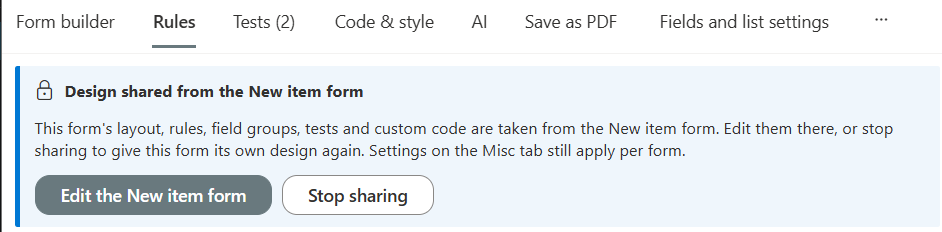
The configurator shows Design shared from the New item form on the inheriting form, with Edit the New item form to go there and Stop sharing to give the form its own design again. Its Rules and Tests tabs are locked, because their content lives on the other form.
- Set it per form. For example, Edit uses New’s design while Display keeps its own.
- Run the shared tests on the inheriting form by opening a real item with
?dffs_tests=1in the address — see Form tests.
5. Telling the forms apart in shared or copied rules
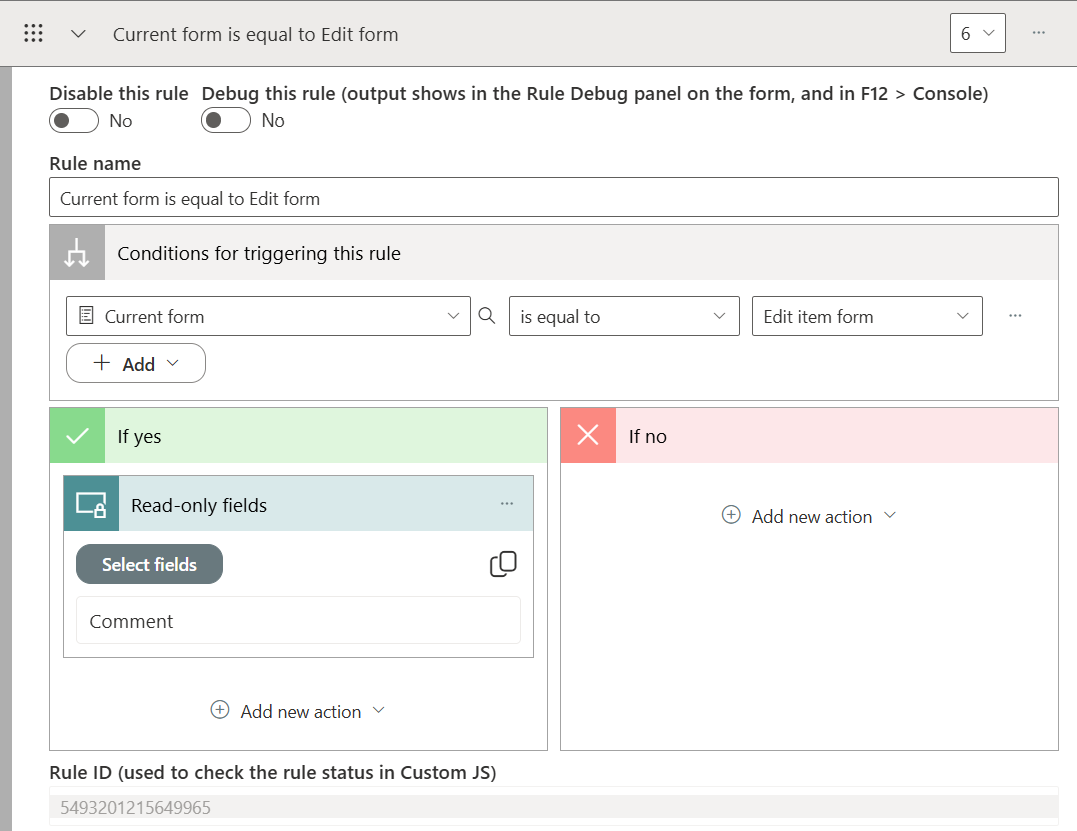
When the same rules run on several forms, the Current form condition decides which form a rule applies to. For example, a rule Current form is equal to Edit item form → Read-only fields: Comment leaves Comment editable on New and locks it on Edit. The condition follows the form actually shown, including after switching from Display to Edit on the DFFS form page and inside vLookup child forms. See Rules.
Tests follow the same pattern: one test can run on New and Edit, with a check limited to one of them — Comment is required only on New, and read-only only on Edit.
6. What is different on the Display form
- Fields are read-only. Values are shown, not edited.
- No save conditions or save-related actions. Before saving the form and After saving the form are not offered, nor are the repeating section read-only and required actions — a repeating section is always read-only there.
- Save as PDF lives here. Print to PDF is configured and run on the Display form only.
- Signature and star rating need turning on in the Display form’s own field properties to show the signature image or the stars — unless the Display form shares another form’s design.
Practical notes
- Start with New. It usually has the most fields and the most rules. Edit is then a copy or a shared design, and Display a simpler layout of its own.
- Prefer Shared design to repeated copying. Two copies kept in step by hand drift apart sooner or later.
- Environment settings can apply to all three forms at once: choose All forms for this list (new, edit and display). See Develop and test outside production.
- Back up before copying over a form with Create a restore point, so the overwritten configuration can be restored.