
Dropdown List & Autocomplete Search Box
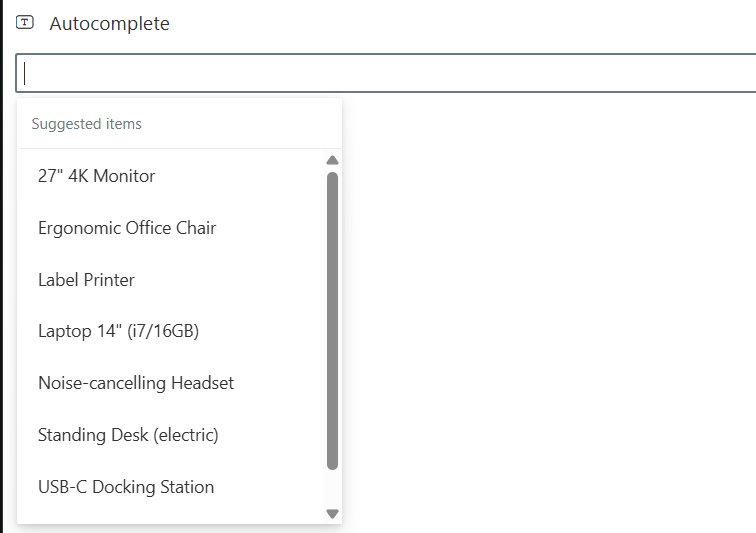
Professional & EnterpriseA plain text field can offer its values from another list. Dropdown list shows them as a select; Autocomplete search box suggests them as the user types. The field stays an ordinary text column — nothing changes in SharePoint — and picking an item can fill in other fields at the same time.
Use it where a lookup column is too rigid: a value that must stay readable after the source item is deleted, a source list on another site, a filtered list that depends on another field, or values from a REST endpoint.
1. Which fields, and what is saved
| Option | Field types | What is saved |
|---|---|---|
| Dropdown list | Single line of text | The text of the chosen item. |
| Autocomplete search box | Single line of text, or plain (not rich) multiple lines of text | The text of the chosen item. On multiple lines of text the user can pick several, saved one per line. |
Turn the option on in the field’s properties in the form configuration. A field uses one mode at a time, so turning a dropdown on turns off autocomplete, pattern, GPS capture, barcode scanner, custom render function and signature for that field. On the display form the saved text is shown as it is.
2. Settings
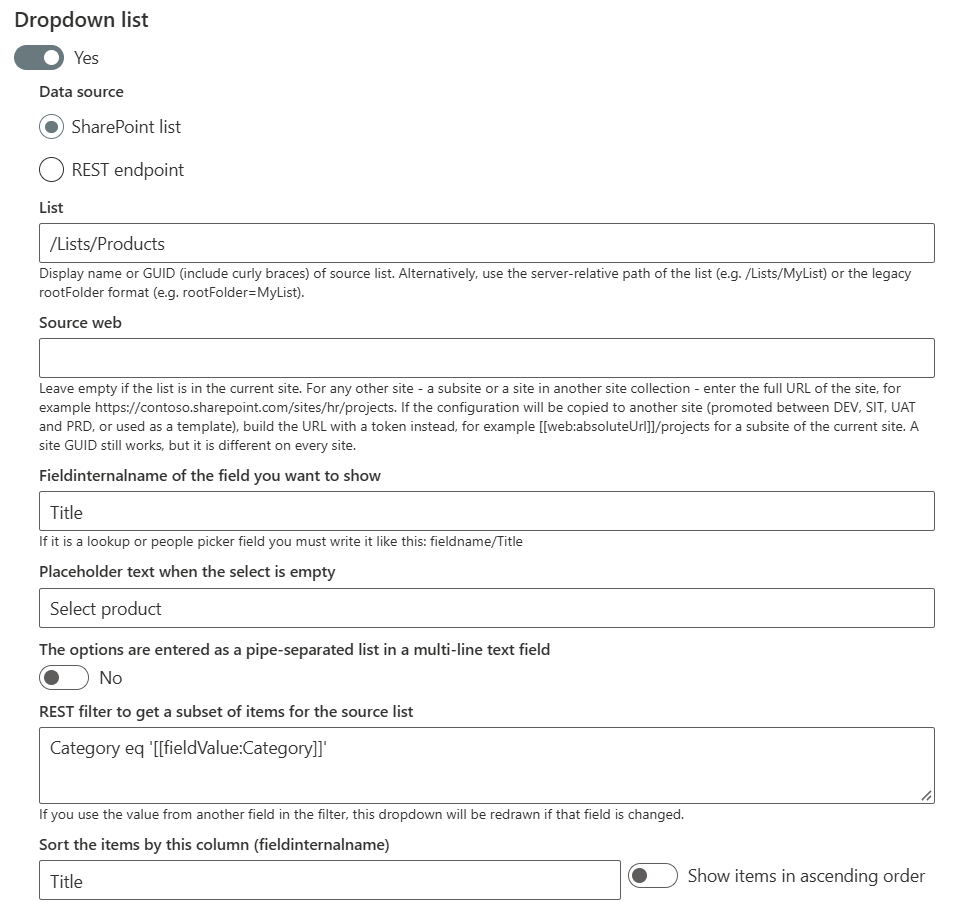
Under Data source, choose SharePoint list or REST endpoint. The REST settings are described in External REST data source; everything else here applies to both.
| Setting | What to enter |
|---|---|
| List | The list’s display name, its server-relative path (/Lists/Products), the legacy rootFolder=Products, or its GUID in curly braces. |
| Source web | Leave empty when the list is on the current site. For any other site — a subsite, or a site in another site collection — enter the site’s full URL, such as https://contoso.sharepoint.com/sites/hr/projects. If the configuration will be copied to another site, build the address with a token instead — see section 5. |
| Fieldinternalname of the field you want to show (dropdown) / …show / search (autocomplete) | The column whose text is shown and saved. For a lookup or person column write FieldName/Title. |
| Additional search fields (autocomplete) | More columns to search, comma-separated — for example a product number as well as its name. |
| REST filter to get a subset of items for the source list | An OData filter such as Active eq 1. It can use dynamic content; when it uses another field’s value, the options load again whenever that field changes. |
| Wait until the fields in the filter have a value | Shown when the filter uses another field’s value. While that field is empty, no query is made and the field shows Fill in Category first instead. See section 4. |
| Sort the items by this column | A column’s internal name, ascending or descending. |
| Placeholder | The text shown while nothing is chosen. |
| Suggested items length (autocomplete) | How many items are suggested when the field gets focus before anything is typed. Empty shows all. |
| Autofill if the dropdown only has one option | Picks the single option automatically. |
| Add your own value (dropdown) | Shows an icon that lets the user type a value of their own instead of choosing one. Unless the source is the same list, also turn on Allow invalid values. |
| Allow invalid values (dropdown) | Keeps a saved value that is no longer among the options — for example after the source item was deleted. |
| Hide the field if it has no options (dropdown) | Hides the field while the filter returns nothing. |
| The options are entered as a pipe-separated list in a multi-line text field (dropdown) | Reads the options from one item instead of one per item: the column holds Red|Green|Blue. The options are shown in the order they are written in the list, not sorted. |
3. Fill in other fields from the chosen item
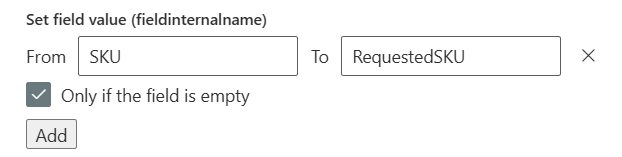
Set field value copies columns of the chosen item into fields on the form: From is the column in the source list, To the field on the form. Pick a customer, and the customer number, address and contact fill in. On the autocomplete this is only available on a single line of text field.
Each row has Only if the field is empty. With it ticked, the field is filled only if it is empty, and clearing the selection leaves it as it is — so a value the user typed, or one an earlier choice filled in, is not overwritten. Without it, every new choice overwrites the field, and clearing the selection clears it.
4. Cascading lists
Put another field’s value in the filter, and the list follows that field. A Product dropdown that only shows the products in the chosen Category:
Category eq '[[fieldValue:Category]]'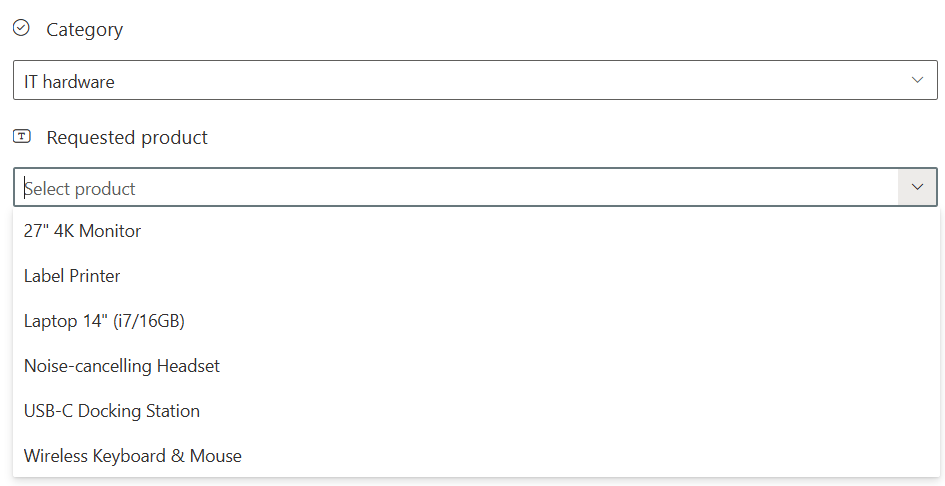
Wait until the field has a value
Until Category has a value, the filter reads Category eq ''. On a small list that returns nothing; on a list above 5,000 items SharePoint can throttle the query, and the field shows an error instead of its options. Turn on Wait until the fields in the filter have a value: while a field the filter uses is empty, no query is made and the field shows Fill in Category first. The options load as soon as the field gets a value. The same setting is on lookup fields with a filter, in every edition.
A dropdown whose query returns nothing shows No options available. Both messages are frontend strings, so they can be overridden per form, and the waiting hint has the class dffs-filter-wait for Custom CSS.
When Category changes, the products load again. When the filter depends on more than a field value, change it from Custom JS with dffs_setFieldAsDropdown or dffs_setFieldAsAutocomplete: pass only the settings that change, and the options load again.
5. Configurations that are copied or promoted
When a configuration is copied to another site — promoted from DEV to PRD, or used as a template — the source list must be found again there. A GUID is different on every site, so it is not.
- List: give the display name or the
/Lists/…path, not the GUID. - Source web: leave it empty for the current site. For a subsite of the current site, build the address with a token, such as
[[web:absoluteUrl]]/projects, rather than a fixed URL or a GUID. - A shared source, such as a central list of countries, can be a fixed URL: every environment should read the same list.

Environment settings lists the references that would break, and the Admin tool’s promotion repoints GUIDs and fixed URLs for you. See Lists this form reads from.
6. From Custom JS
| Function | Use |
|---|---|
dffs_setFieldAsDropdown(idOrFin, config)dffs_setFieldAsAutocomplete(idOrFin, config) | Turn a field into a dropdown or autocomplete, or change one, while the form is open. The config uses the same settings as the field properties. |
dffs_cancel_fieldAsDropdown(itemId)dffs_cancel_fieldAsAutocomplete(itemId) | Turn the option off, leaving a plain text field. |
getFieldValue(fin) | Returns the saved text. On a multi-value autocomplete, the values separated by line breaks. |
Full reference: Custom JS — Window API reference.
Practical notes
- Check the filter in the browser first.
…/_api/web/lists/getbytitle('Products')/items?$filter=Active eq 1shows whether it returns what you expect before you put it in the field. - Index the filtered column on a large source list, so SharePoint can filter it beyond its 5,000-item view threshold, and turn on Wait until the fields in the filter have a value so no query is made with an empty filter value.
- The saved value is text. Renaming an item in the source list does not change values already saved. If that matters, use a lookup column instead.
- Rules see the saved text. A rule on the field compares the text — on a multi-value autocomplete, the values joined by line breaks, so use contains to check for one of them. See Rules.