
Attachments
All editionsSharePoint keeps a list item’s attachments in one place, and its standard form shows them in one box. Modern DFFS lets you place the Attachments field wherever it belongs in the form — and more than once. With a suffix, each placement becomes its own section: receipts on the Expenses tab, the signed approval on the Approval tab, each showing only its own files, each with its own rules and its own requirement.
1. The attachment control
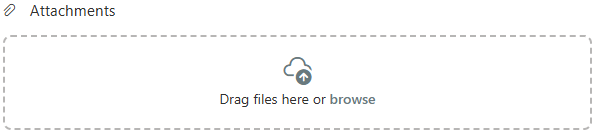
Add the Attachments field to the form like any other field. Users add files by dragging them onto the control, by clicking it, or with the keyboard — Tab to it and press Enter or Space — and can add several at once. Choose how the upload area looks with Upload area style:

The settings are in the field’s properties:
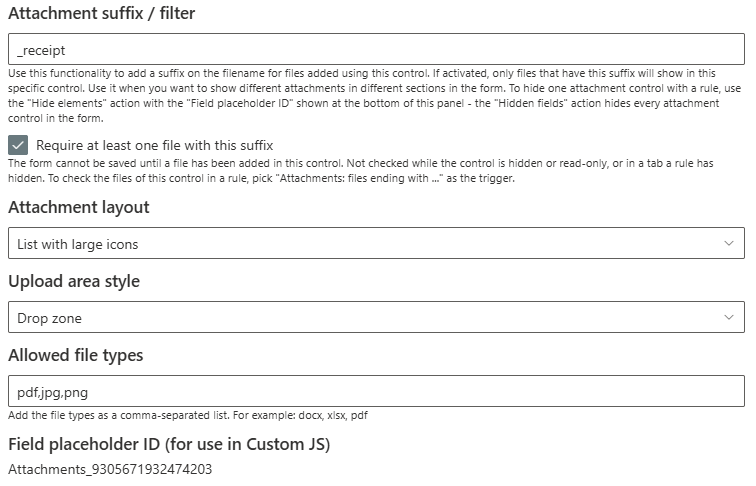
| Setting | What it does |
|---|---|
| Attachment suffix / filter | Splits the attachments between several controls — see section 2. |
| Require at least one file with this suffix | The form cannot be saved until a file is added in this control — see section 3. Available once a suffix is entered. |
| Attachment layout | Grid with large icons, List with large icons or List with small icons. The list layouts also show the size of a newly added file. |
| Upload area style | Classic (separate drop and click areas), the default, or Drop zone: a single box for dragging files or clicking browse, in the site theme’s accent colour. The drop zone also lists the allowed file types, when they are set. |
| Allowed file types | A comma-separated list such as docx, xlsx, pdf. The file picker offers only those types, and a file of another type dropped on the control is refused with a message listing the allowed types. Leave it empty to allow any type. |
| Field placeholder ID (for use in Custom JS) | The control’s own ID, such as Attachments_9305671932474203. Use it to hide or show this one control with the Hide elements / Show elements rule actions, or in Custom JS and Custom CSS. |
When files are saved. Files added to the form are uploaded when the form is saved, with a progress message while they upload. Until then, a newly added file is marked New and can be removed again without trace. A file that is already saved on the item is deleted as soon as the user confirms — it goes to the site’s recycle bin straight away, even if the form is then closed without saving.
Each file has a Remove button, and a saved file also Download. The buttons appear when you point at the file or reach it with the keyboard, and are always shown on touch devices. A file with the same name as one already in the control is not added twice. If attachments are turned off for the list, the control says so.
2. Attachments in several sections of the form
Place the Attachments field in each section that needs files, and give each placement its own Attachment suffix / filter in its field properties:
| Section | Suffix | A file uploaded as… | …is saved as |
|---|---|---|---|
| Expenses tab — Receipts | _receipt | Taxi.pdf | Taxi_receipt.pdf |
| Approval tab — Signed approval | _approval | Approval.pdf | Approval_approval.pdf |
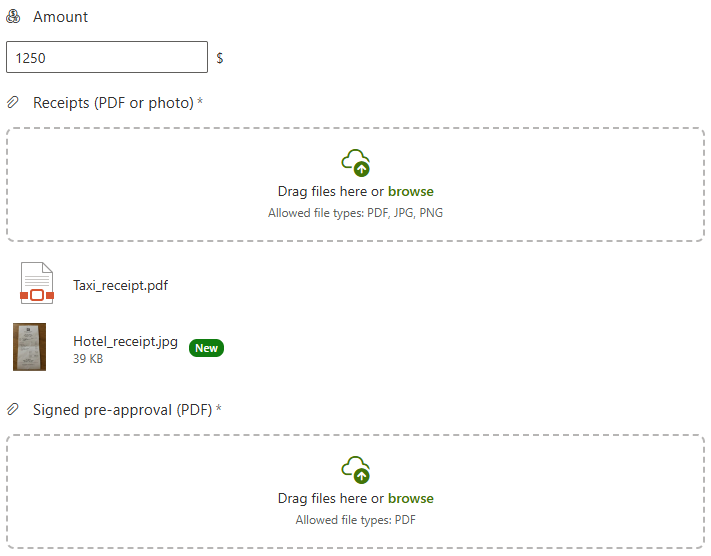
- On upload, the suffix is added to the file name, before the extension.
- On display, each control shows only the files whose name, before the extension, ends with its suffix. The extension’s case does not matter, so
Taxi_receipt.PDFadded outside the form still shows under Receipts. - A control without a suffix shows every file, including those added in the other sections. Use one where someone needs the full picture, such as on the display form.
- All the files are still ordinary attachments of the same item. SharePoint, flows and views see them as usual; the suffix in the file name is what tells the sections apart.
- Characters SharePoint does not allow in a file name are removed from the suffix as you type. The suffix is case-sensitive.
Choose the suffixes before going live. A file’s suffix is set when it is uploaded. Changing a control’s suffix later does not rename the files already saved, so they stop showing in that control. A short, distinctive suffix that starts with an underscore —
_receipt,_contract— will not clash with ordinary file names.
3. Requiring attachments
| You want | Use |
|---|---|
| At least one file in a given section | Tick Require at least one file with this suffix on that control. The control gets the required marker, and saving stops with the control named in the message, outlined, and its tab highlighted until a file is added there. |
| At least one file anywhere on the item | Make the Attachments field required — for example with the Required fields rule action. Any file in any section counts. |
| A file in a section only in some situations | Tick Require at least one file with this suffix, and let a rule hide the control, or its tab, when the file is not needed. A hidden control is not checked. See the example below. |
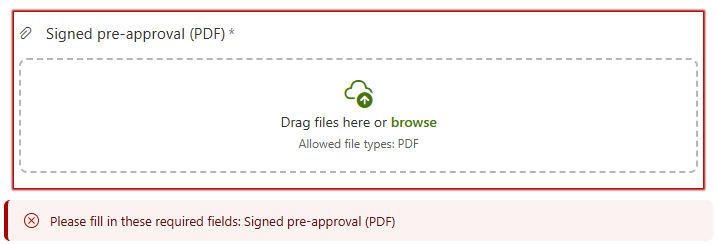
The per-section requirement is not checked where the user cannot add a file: on the display form, while the Attachments field is hidden or read-only, when the control is hidden with Hide elements or Custom CSS, or when it is on a tab a rule has hidden. It counts towards the tab completion indicator, and in a multi-step form with validation turned on, Next stops on it.
4. Attachments in rules
In a rule’s conditions, the Attachments field offers is empty, is not empty, is changed, is changed from initial value and number of attachments is equal to / greater than / less than…. Rules on attachments run again whenever a file is added or removed.
- The plain Attachments condition counts every file on the item.
- To check one section, pick Attachments: files ending with “_receipt”. The condition picker lists one entry for each suffix used on the form, and every operator then looks at that section’s files only.
- To hide one section, use the Hide elements action with the control’s ID,
Attachments_<id>— the Field placeholder ID at the bottom of its field properties. The Hidden fields action hides every attachment control at once, because they are all the same field. - If a suffix is changed or its control removed, a rule that still checks the old suffix shows MISSING ATTACHMENT CONTROL. It finds no files, so pick the control again in the condition.
More about conditions and actions: Rules.
5. Example: an expense claim
Goal: receipts are always required; a signed pre-approval is required only for claims above 1,000.
- On the Expenses tab, add the Attachments field with the suffix
_receiptand tick Require at least one file with this suffix. - On the Approval tab, add the Attachments field again, with the suffix
_preapproval, and tick Require at least one file with this suffix. Note its Field placeholder ID. - Add a rule Amount is greater than 1000:
- If yes → Show elements:
Attachments_<id> - If no → Hide elements:
Attachments_<id>
- If yes → Show elements:
- Optionally, add a rule on Attachments: files ending with “_preapproval” is not empty that makes an Approved by field required once the document is attached.
A small claim then saves with its receipts alone. A large one cannot be saved until the pre-approval is attached, and the message says which section is missing a file.
6. Attachments elsewhere
- Print to PDF shows image attachments as pictures, with a maximum height you choose, and other files as links. See Print to PDF.
- Custom JS reads the current files from
dffs_attachments, anddffs_fieldChangedis called with"Attachments"when a file is added or removed. See the Custom JS reference. - Form tests can check that a section’s rule fires, using the same Attachments conditions. See Form tests.
Practical notes
- Keep one control without a suffix on the display form if reviewers need to see every file in one place.
- Tell users what goes where with the field’s label and description on each control — Receipts (PDF or photo) says more than Attachments.
- Combine Allowed file types with the suffix — images only for receipts, PDF only for the signed approval.